 Verified
free
Verified
free Triage GitHub Issues to a Notion Board with Qwen via OpenRouter
Ready to use?
Resources & Links
1. Overview
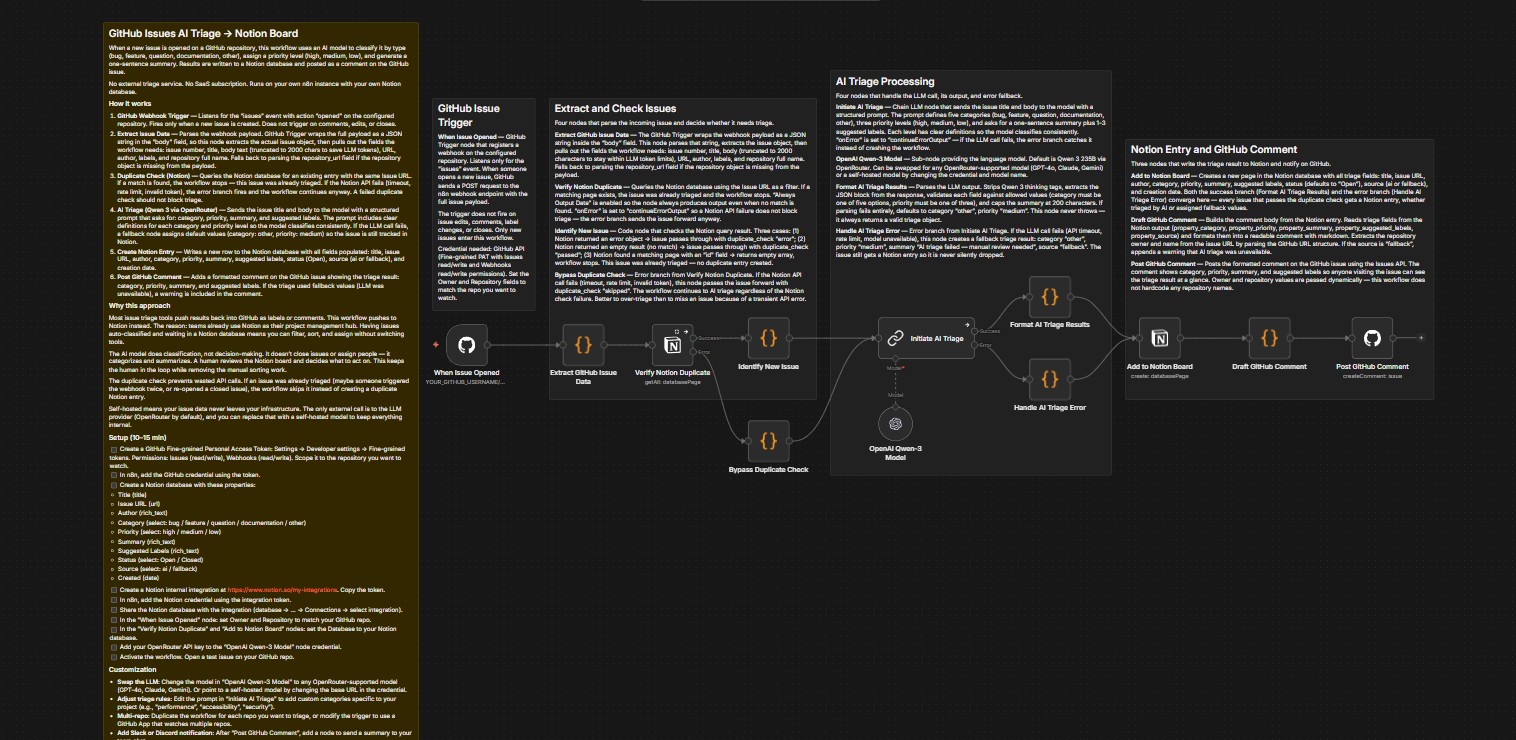
This is a workflow that automates GitHub issue triage using AI. When a new issue is opened on a repository, the workflow classifies it by type (bug, feature, question, documentation, other), assigns a priority level (high, medium, low), and generates a one-sentence summary — results are written to a Notion database and posted as a comment directly on the issue. No external triage service. No SaaS subscription. Runs on your own n8n instance.
Main Goal: Eliminate 30-60 seconds of manual sorting per issue by auto-classifying and routing to a Notion board — humans still make the final call but never need to manually categorize.
🚀 Key Highlight: AI classifies but does not decide — it does not close issues or assign people. A human reviews the Notion board and decides what to act on. The workflow has a fallback mechanism: if the LLM goes down, issues still get a Notion entry with default values — nothing is ever silently dropped.
See a live Notion board populated by this workflow: Notion Demo Board
2. Key Features
A. Smart AI Triage with Structured Prompts AI classifies and prioritizes issues based on a prompt with clear definitions for each category and priority level, ensuring consistent classification results.
- Detail 1: The prompt sent to the model includes detailed definitions for each issue type (bug, feature, question, documentation, other) and each priority level (high, medium, low), helping the model classify accurately and consistently.
- Detail 2: If the LLM call fails, a fallback node automatically assigns default values (category: other, priority: medium) — the issue is still tracked in Notion, never lost.
B. Duplicate Check & Robust Error Handling The workflow is designed to never miss an issue and never create duplicate records in Notion.
- Detail 1: Duplicate check queries the Notion database by Issue URL before processing — if the issue was already triaged, the workflow stops, avoiding unnecessary API calls and duplicate records.
- Detail 2: If the duplicate check itself fails (Notion API timeout, rate limit, invalid token), the error branch fires and the workflow continues to triage anyway — over-triaging is better than missing an issue due to a transient error.
C. Results Published to Both Notion & GitHub Triage results don’t just live in Notion — they are also posted directly on the GitHub issue as a formatted comment.
- Detail 1: The GitHub comment displays category, priority, summary, and suggested labels. If fallback values were used because the LLM was unavailable, the comment includes a warning so the team knows to review manually.
- Detail 2: The Notion database serves as the single centralized view — all incoming issues are classified and prioritized, the team can filter, sort, and assign without switching tools.
D. Private & Self-Hosted Issue data never leaves your infrastructure. The only external call goes to the LLM provider (OpenRouter by default), which can be replaced with a self-hosted model to keep everything internal.
3. Setup Guide
To run this workflow, you need to prepare the following resources:
⚙️ Prerequisites
- n8n Instance: Self-hosted or cloud version.
- GitHub Personal Access Token: Fine-grained, with Issues (read/write) and Webhooks (read/write) permissions. Scoped to the repository you want to watch. Create at: Settings → Developer settings → Fine-grained tokens.
- Notion Account: With an internal integration. Create at notion.so/my-integrations, copy the token.
- OpenRouter API Key: Or any OpenAI-compatible endpoint.
Steps:
- Configure GitHub: Create a Fine-grained PAT with Issues read/write and Webhooks read/write permissions. Add the GitHub credential in n8n.
- Create Notion Database: Create a Notion database with these properties:
- Title (title)
- Issue URL (url)
- Author (rich_text)
- Category (select: bug, feature, question, documentation, other)
- Priority (select: high, medium, low)
- Summary (rich_text)
- Suggested Labels (rich_text)
- Status (select: Open, Closed)
- Source (select: ai, fallback)
- Created (date)
- Connect Notion: Create an internal integration at notion.so/my-integrations. Add the Notion credential in n8n. Share the database with the integration (database → … → Connections → select integration).
- Configure Nodes: In the “When Issue Opened” node — set Owner and Repository to match your GitHub repo. In the “Verify Notion Duplicate” and “Add to Notion Board” nodes — set the Database to your Notion database. Add your OpenRouter API key to the “OpenAI Qwen-3 Model” node.
- Activate: Enable the workflow. Open a test issue on your GitHub repo to verify.
4. Customization
- Swap the LLM: Change the model in the “OpenAI Qwen-3 Model” node to any OpenRouter-supported model (GPT-4o, Claude, Gemini, etc.). Or point to a self-hosted model by changing the base URL in the credential.
- Adjust triage rules: Edit the prompt in “Initiate AI Triage” to add custom categories specific to your project (e.g., “performance”, “accessibility”, “security”). The model will use whatever definitions you provide in the prompt.
- Multi-repo: Duplicate the workflow for each repo you want to triage, or modify the trigger to use a GitHub App that watches multiple repositories.
- Add team notifications: After “Post GitHub Comment”, add a Slack or Discord node to send a summary of high-priority issues to your team chat.
- Auto-assign: Add logic after “Format AI Triage Results” to assign GitHub issues based on category (e.g., bugs to backend team, docs to content team).
- Auto-label: Use the suggested labels from the AI to automatically apply labels on the GitHub issue. Requires creating the labels in your repo first.
5. What’s Next
This workflow is designed as a foundation. Here is where it can grow:
A. Auto-label on GitHub Use the suggested labels from AI to automatically apply labels on the issue. Requires label creation in the repo first, but once set up, removes another manual step.
B. Batch Triage Add a “Triage All Open Issues” mode that processes existing untriaged issues on a schedule, not just new ones via webhook. Useful for backfills or when adopting the workflow on an active repo.
C. Priority-based Routing High priority issues get a Slack or Discord notification immediately. Medium and low go to Notion only. Different response SLAs per priority level.
D. Learning from Feedback Track when a human changes the AI-assigned category in Notion. Use those corrections as few-shot examples in the prompt to improve accuracy over time.
E. Notion Dashboard Build a Notion view with filters by category and priority. Add a “Triage backlog” view sorted by priority so the team always knows what to work on next.
F. Multi-source Triage Extend the trigger to also listen for GitLab issues, Linear tickets, or customer support emails. All triage results converge into the same Notion board.
The current version is intentionally simple. Simple means it runs cheap, breaks rarely, and is easy to debug. Complexity can be added when the use case demands it.
6. Requirements
- n8n instance (self-hosted or cloud)
- GitHub Fine-grained Personal Access Token (Issues read/write, Webhooks read/write)
- Notion account with internal integration
- OpenRouter API key (or any OpenAI-compatible endpoint)
⚠️ Cost Warning: The workflow calls the OpenRouter API for every new issue opened. For repositories with low to moderate issue frequency, the cost is minimal. The duplicate check prevents wasted API calls. For high-volume repositories (hundreds per day), consider OpenRouter rate limits and Notion API limits.